Setting Up Multi-Site WordPress Management with Automation: Complete Guide
Managing multiple WordPress sites can quickly become overwhelming without proper automation. Whether you’re running 5 sites or 50, manual updates, security monitoring, and content management across multiple properties will consume countless hours and introduce human error. This comprehensive guide walks you through building a robust multi-site WordPress management system with automation that scales efficiently.
By implementing the system outlined in this tutorial, you’ll reduce site management time by 80% while improving security, performance, and consistency across your WordPress portfolio. We’ll cover everything from initial setup to advanced automation workflows that handle updates, backups, security monitoring, and content distribution automatically.
What We’re Building: A Complete Multi-Site Management Ecosystem
Our automated multi-site WordPress management system consists of several integrated components:
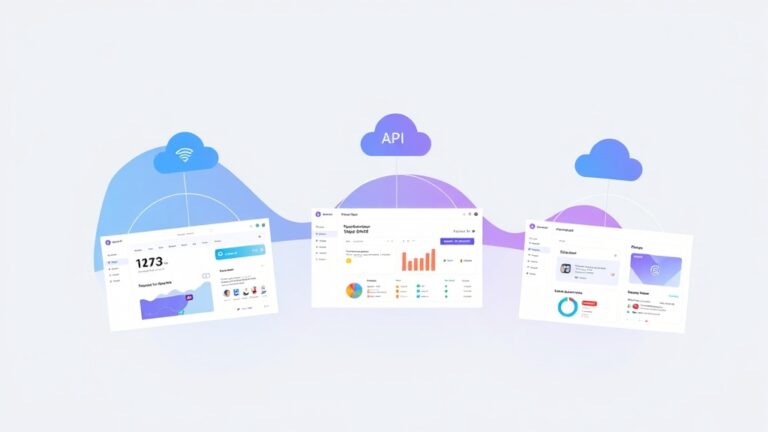
- Central Management Dashboard: A unified interface for monitoring all sites
- Automated Update System: Handles WordPress core, theme, and plugin updates with rollback capabilities
- Backup Automation: Scheduled backups with cloud storage integration
- Security Monitoring: Real-time threat detection and automated responses
- Performance Optimization: Automated caching, image optimization, and database maintenance
- Content Distribution: Synchronized content publishing across multiple sites
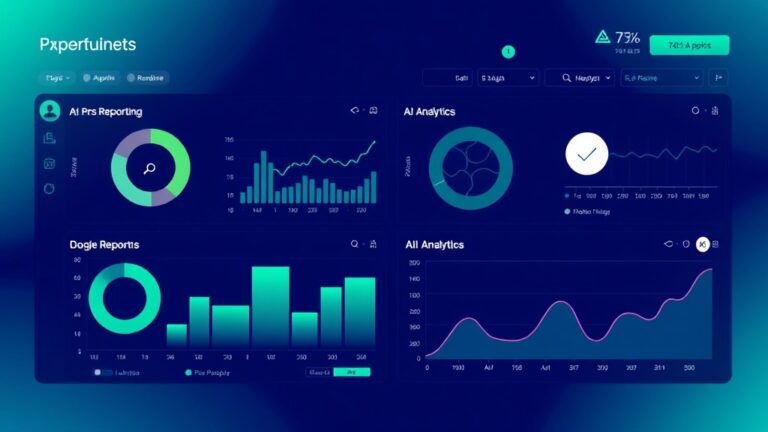
- Reporting and Analytics: Automated health reports and performance metrics
The system integrates with popular tools like Airtable for data management and can connect to email automation platforms like ActiveCampaign for notification workflows.
Prerequisites and Tech Stack
Required Infrastructure
- VPS or Dedicated Server: Minimum 4GB RAM, 2 CPU cores
- Linux Environment: Ubuntu 20.04+ or CentOS 8+
- Web Server: Nginx or Apache with SSL certificates
- Database: MySQL 8.0+ or MariaDB 10.5+
- PHP: Version 8.1+ with required extensions
- Node.js: Version 16+ for automation scripts
- Git: For version control and deployment
Required Tools and Services
| Component | Tool/Service | Monthly Cost | Purpose |
|---|---|---|---|
| Management Platform | MainWP or ManageWP | $29-99 | Central dashboard |
| Backup Storage | AWS S3 or Google Cloud | $5-20 | Automated backups |
| Monitoring | Uptime Robot + New Relic | $15-30 | Site monitoring |
| Security | Wordfence or Sucuri | $99-199 | Security scanning |
| Automation | Zapier or Make | $20-50 | Workflow automation |
Skills Required
- Intermediate WordPress administration
- Basic command line proficiency
- Understanding of web server configuration
- Familiarity with API integrations
- Basic scripting knowledge (Bash/Python preferred)
Step-by-Step Implementation
Step 1: Server Environment Setup
First, prepare your server environment with the necessary components:
# Update system packages
sudo apt update && sudo apt upgrade -y

# Install required packages
sudo apt install nginx mysql-server php8.1-fpm php8.1-mysql
php8.1-curl php8.1-gd php8.1-mbstring php8.1-xml
php8.1-zip nodejs npm git certbot python3-certbot-nginx -y

# Configure MySQL
sudo mysql_secure_installation

# Create automation user
sudo useradd -m -s /bin/bash wpmanager
sudo usermod -aG sudo wpmanager
Step 2: WordPress Multi-Site Network Configuration
Configure WordPress Multisite to serve as the foundation for your management system:
# In wp-config.php, add these lines above "That's all, stop editing!"
define('WP_ALLOW_MULTISITE', true);
define('MULTISITE', true);
define('SUBDOMAIN_INSTALL', true);
define('DOMAIN_CURRENT_SITE', 'yourdomain.com');
define('PATH_CURRENT_SITE', '/');
define('SITE_ID_CURRENT_SITE', 1);
define('BLOG_ID_CURRENT_SITE', 1);
Configure your .htaccess file for multisite:
RewriteEngine On
RewriteBase /
RewriteRule ^index.php$ - [L]

# add a trailing slash to /wp-admin
RewriteRule ^wp-admin$ wp-admin/ [R=301,L]

RewriteCond %{REQUEST_FILENAME} -f [OR]
RewriteCond %{REQUEST_FILENAME} -d
RewriteRule ^ - [L]
RewriteRule ^(wp-(content|admin|includes).*) $1 [L]
RewriteRule ^(.*.php)$ $1 [L]
RewriteRule . index.php [L]
Step 3: Central Management Dashboard Installation
Install MainWP as your central management platform:
# Download and install MainWP
wget https://downloads.wordpress.org/plugin/mainwp.latest-stable.zip
unzip mainwp.latest-stable.zip -d /var/www/html/wp-content/plugins/
chown -R www-data:www-data /var/www/html/wp-content/plugins/mainwp/
Configure the MainWP child plugin on each managed site:
# Install child plugin on each site
wp plugin install mainwp-child --activate --allow-root

# Generate unique security keys for each site
wp eval "echo wp_generate_password(32, true, true);" --allow-root
Step 4: Automated Backup System
Create a comprehensive backup automation script:
#!/bin/bash
# backup-automation.sh

BACKUP_DIR="/var/backups/wordpress"
S3_BUCKET="your-backup-bucket"
DATE=$(date +%Y%m%d_%H%M%S)
RETENTION_DAYS=30

# Create backup directory
mkdir -p $BACKUP_DIR

# Function to backup individual site
backup_site() {
    local SITE_PATH=$1
    local SITE_NAME=$2
    local DB_NAME=$3

    # Create site backup directory
    mkdir -p "$BACKUP_DIR/$SITE_NAME/$DATE"

    # Backup files
    tar -czf "$BACKUP_DIR/$SITE_NAME/$DATE/files.tar.gz" -C "$SITE_PATH" .

    # Backup database
    mysqldump -u backup_user -p$BACKUP_PASSWORD $DB_NAME >
        "$BACKUP_DIR/$SITE_NAME/$DATE/database.sql"

    # Upload to S3
    aws s3 sync "$BACKUP_DIR/$SITE_NAME/$DATE/"
        "s3://$S3_BUCKET/$SITE_NAME/$DATE/" --delete

    # Clean old local backups
    find "$BACKUP_DIR/$SITE_NAME/" -type d -mtime +$RETENTION_DAYS -exec rm -rf {} +
}

# Read sites from configuration file
while IFS=',' read -r site_path site_name db_name; do
    backup_site "$site_path" "$site_name" "$db_name"
done < /etc/wordpress-sites.conf
Schedule the backup script with cron:
# Add to crontab
0 2 * * * /usr/local/bin/backup-automation.sh
0 14 * * 0 /usr/local/bin/backup-automation.sh # Weekly afternoon backup
Step 5: Security Monitoring and Automated Responses
Implement automated security monitoring with custom scripts:
#!/usr/bin/env python3
# security-monitor.py

import requests
import json
import subprocess
import smtplib
from email.mime.text import MIMEText
from datetime import datetime

class WordPressSecurityMonitor:
    def __init__(self, sites_config):
        self.sites = sites_config
        self.threats_detected = []

    def check_file_integrity(self, site_path):
        """Check for unauthorized file modifications"""
        cmd = f"find {site_path} -name '*.php' -newer /tmp/last_scan -type f"
        result = subprocess.run(cmd.split(), capture_output=True, text=True)

        if result.stdout:
            return result.stdout.strip().split('n')
        return []

    def scan_malware(self, site_path):
        """Basic malware pattern detection"""
        malware_patterns = ['eval(base64_decode', 'system($_GET', 'exec($_POST']
        suspicious_files = []

        for pattern in malware_patterns:
            cmd = f"grep -r '{pattern}' {site_path} --include='*.php'"
            result = subprocess.run(cmd, shell=True, capture_output=True, text=True)

            if result.stdout:
                suspicious_files.extend(result.stdout.strip().split('n'))

        return suspicious_files

    def send_alert(self, threat_type, details):
        """Send security alert via email"""
        msg = MIMEText(f"Security threat detected: {threat_type}nnDetails:n{details}")
        msg['Subject'] = f'WordPress Security Alert - {threat_type}'
        msg['From'] = 'security@yourdomain.com'
        msg['To'] = 'admin@yourdomain.com'

        # Send email (configure SMTP settings)
        # smtp_server.send_message(msg)

    def monitor_all_sites(self):
        """Monitor all configured sites"""
        for site in self.sites:
            # Check file integrity
            modified_files = self.check_file_integrity(site['path'])
            if modified_files:
                self.send_alert('File Modification', 'n'.join(modified_files))

            # Scan for malware
            suspicious_files = self.scan_malware(site['path'])
            if suspicious_files:
                self.send_alert('Malware Detection', 'n'.join(suspicious_files))

# Configuration
sites_config = [
    {'name': 'site1', 'path': '/var/www/site1'},
    {'name': 'site2', 'path': '/var/www/site2'}
]

monitor = WordPressSecurityMonitor(sites_config)
monitor.monitor_all_sites()
Step 6: Automated Update Management
Create a staged update system with rollback capabilities:
#!/bin/bash
# update-manager.sh

STAGING_MODE=${1:-false}
SITES_CONFIG="/etc/wordpress-sites.conf"
LOG_FILE="/var/log/wp-updates.log"

log_message() {
    echo "[$(date '+%Y-%m-%d %H:%M:%S')] $1" | tee -a $LOG_FILE
}

update_wordpress_site() {
    local SITE_PATH=$1
    local SITE_NAME=$2

    log_message "Starting updates for $SITE_NAME"

    # Create backup before updates
    /usr/local/bin/backup-automation.sh $SITE_PATH $SITE_NAME

    cd $SITE_PATH

    # Update WordPress core
    wp core update --allow-root
    wp core update-db --allow-root

    # Update plugins
    wp plugin update --all --allow-root

    # Update themes
    wp theme update --all --allow-root

    # Clear caches
    wp cache flush --allow-root

    # Run health check
    if ! curl -f -s "http://$SITE_NAME" > /dev/null; then
        log_message "ERROR: Site $SITE_NAME not responding after update"
        # Trigger rollback
        rollback_site $SITE_PATH $SITE_NAME
        return 1
    fi

    log_message "Successfully updated $SITE_NAME"
    return 0
}

rollback_site() {
    local SITE_PATH=$1
    local SITE_NAME=$2

    log_message "Rolling back $SITE_NAME"

    # Restore from latest backup
    LATEST_BACKUP=$(find /var/backups/wordpress/$SITE_NAME -type d -name "*" | sort -r | head -n 1)

    if [ -n "$LATEST_BACKUP" ]; then
        tar -xzf "$LATEST_BACKUP/files.tar.gz" -C "$SITE_PATH"
        mysql -u restore_user -p$RESTORE_PASSWORD $DB_NAME < "$LATEST_BACKUP/database.sql"
        log_message "Rollback completed for $SITE_NAME"
    fi
}

# Process all sites
while IFS=',' read -r site_path site_name db_name; do
    if [ "$STAGING_MODE" = "true" ]; then
        # Test on staging first
        update_wordpress_site "${site_path}_staging" "staging.${site_name}" "${db_name}_staging"
    else
        update_wordpress_site "$site_path" "$site_name" "$db_name"
    fi
done < $SITES_CONFIG
Testing and Validation
Automated Testing Suite
Implement comprehensive testing to validate your automation:
#!/usr/bin/env python3
# test-automation.py

import requests
import time
import json
from selenium import webdriver
from selenium.webdriver.chrome.options import Options

class WordPressTestSuite:
    def __init__(self, sites):
        self.sites = sites
        self.results = []

        # Configure headless browser
        chrome_options = Options()
        chrome_options.add_argument('--headless')
        self.driver = webdriver.Chrome(options=chrome_options)

    def test_site_availability(self, url):
        """Test basic site availability and response time"""
        start_time = time.time()
        try:
            response = requests.get(url, timeout=10)
            response_time = time.time() - start_time

            return {
                'status': response.status_code,
                'response_time': response_time,
                'success': response.status_code == 200
            }
        except Exception as e:
            return {
                'status': 0,
                'response_time': time.time() - start_time,
                'success': False,
                'error': str(e)
            }

    def test_admin_access(self, site_url, username, password):
        """Test WordPress admin login functionality"""
        try:
            self.driver.get(f"{site_url}/wp-admin")

            # Fill login form
            username_field = self.driver.find_element("name", "log")
            password_field = self.driver.find_element("name", "pwd")

            username_field.send_keys(username)
            password_field.send_keys(password)

            # Submit form
            login_button = self.driver.find_element("id", "wp-submit")
            login_button.click()

            time.sleep(3)

            # Check if login successful
            return 'dashboard' in self.driver.current_url.lower()

        except Exception as e:
            return False

    def test_plugin_functionality(self, site_url):
        """Test critical plugin functionality"""
        # Test backup plugin API
        backup_test = requests.get(f"{site_url}/wp-json/backup/v1/status")

        # Test security plugin API
        security_test = requests.get(f"{site_url}/wp-json/security/v1/status")

        return {
            'backup_plugin': backup_test.status_code == 200,
            'security_plugin': security_test.status_code == 200
        }

    def run_full_test_suite(self):
        """Run complete test suite on all sites"""
        for site in self.sites:
            site_results = {
                'site': site['name'],
                'url': site['url'],
                'timestamp': time.time()
            }

            # Basic availability test
            availability = self.test_site_availability(site['url'])
            site_results['availability'] = availability

            # Admin access test
            admin_access = self.test_admin_access(
                site['url'], site['admin_user'], site['admin_pass']
            )
            site_results['admin_access'] = admin_access

            # Plugin functionality test
            plugin_tests = self.test_plugin_functionality(site['url'])
            site_results['plugins'] = plugin_tests

            self.results.append(site_results)

        return self.results

# Usage example
sites_config = [
    {
        'name': 'site1',
        'url': 'https://site1.com',
        'admin_user': 'admin',
        'admin_pass': 'secure_password'
    }
]

tester = WordPressTestSuite(sites_config)
results = tester.run_full_test_suite()
print(json.dumps(results, indent=2))
Performance Monitoring
Set up continuous performance monitoring:
Pro Tip: Integrate your monitoring system with tools like Amplitude to track user behavior patterns across your WordPress sites and identify performance bottlenecks that affect user experience.
# performance-monitor.sh
#!/bin/bash

MONITOR_CONFIG="/etc/wp-performance.conf"
METRICS_FILE="/var/log/wp-performance.json"

collect_metrics() {
    local SITE_URL=$1
    local SITE_NAME=$2

    # Page load time
    LOAD_TIME=$(curl -o /dev/null -s -w '%{time_total}' $SITE_URL)

    # Server response time
    RESPONSE_TIME=$(curl -o /dev/null -s -w '%{time_starttransfer}' $SITE_URL)

    # Database query time
    DB_TIME=$(mysql -u monitor -p$MONITOR_PASSWORD -e
        "SELECT AVG(Query_time) FROM mysql.slow_log WHERE start_time > NOW() - INTERVAL 1 HOUR;"
        --silent --raw)

    # Memory usage
    MEMORY_USAGE=$(free | grep '^Mem:' | awk '{print ($3/$2)*100}')

    # Disk usage
    DISK_USAGE=$(df /var/www | tail -1 | awk '{print $5}' | sed 's/%//')

    # Create JSON metrics
    cat <> $METRICS_FILE
{
  "timestamp": "$(date -Iseconds)",
  "site": "$SITE_NAME",
  "load_time": $LOAD_TIME,
  "response_time": $RESPONSE_TIME,
  "db_time": $DB_TIME,
  "memory_usage": $MEMORY_USAGE,
  "disk_usage": $DISK_USAGE
},
EOF
}

# Monitor all sites
while IFS=',' read -r site_url site_name; do
    collect_metrics "$site_url" "$site_name"
done < $MONITOR_CONFIG
Deployment and Production Setup
Production Deployment Checklist
- SSL Certificates: Ensure all sites have valid SSL certificates with auto-renewal
- Firewall Configuration: Set up UFW or iptables with restrictive rules
- Database Optimization: Configure MySQL for optimal performance
- Caching Layer: Implement Redis or Memcached for object caching
- CDN Integration: Configure CloudFlare or AWS CloudFront
- Monitoring Alerts: Set up PagerDuty or similar for critical alerts
- Log Rotation: Configure logrotate for all automation logs
Security Hardening
# security-hardening.sh
#!/bin/bash

# Disable unnecessary services
sudo systemctl disable apache2 # if using nginx
sudo systemctl disable sendmail

# Configure fail2ban
sudo apt install fail2ban -y
cat < /etc/fail2ban/jail.local
[DEFAULT]
bantime = 3600
findtime = 600
maxretry = 3

[sshd]
enabled = true

[wordpress]
enabled = true
filter = wordpress
logpath = /var/log/auth.log
maxretry = 3
bantime = 3600
EOF

# Restart fail2ban
sudo systemctl restart fail2ban

# Set proper file permissions
find /var/www -type d -exec chmod 755 {} ;
find /var/www -type f -exec chmod 644 {} ;
chmod 600 /var/www/*/wp-config.php
Automated Deployment Pipeline
Create a CI/CD pipeline for your automation scripts:
# .github/workflows/deploy-automation.yml
name: Deploy WordPress Automation

on:
  push:
    branches: [ main ]
  pull_request:
    branches: [ main ]

jobs:
  deploy:
    runs-on: ubuntu-latest

    steps:
    - uses: actions/checkout@v3

    - name: Setup Python
      uses: actions/setup-python@v3
      with:
        python-version: '3.9'

    - name: Install dependencies
      run: |
        python -m pip install --upgrade pip
        pip install -r requirements.txt

    - name: Run tests
      run: |
        python -m pytest tests/

    - name: Deploy to production
      run: |
        rsync -avz --delete
          --exclude '.git'
          --exclude 'tests'
          ./ user@your-server:/opt/wp-automation/

    - name: Restart services
      run: |
        ssh user@your-server 'sudo systemctl restart wp-automation'
Enhancement Ideas and Advanced Features
AI-Powered Content Management
Integrate AI tools for automated content optimization and distribution:
- Content Analysis: Use GPT-4 API to analyze and optimize content across sites
- SEO Automation: Automatically generate meta descriptions and optimize titles
- Image Optimization: AI-powered image compression and alt-text generation
- A/B Testing: Automated headline and content variation testing
Advanced Analytics Integration
Connect your management system with analytics platforms for deeper insights. You can integrate with tools like Brandwatch for social media monitoring or use data visualization platforms to create comprehensive dashboards.
Multi-Cloud Backup Strategy
Implement redundant backup systems across multiple cloud providers:
# multi-cloud-backup.py
import boto3
from google.cloud import storage
from azure.storage.blob import BlobServiceClient

class MultiCloudBackup:
    def __init__(self):
        self.aws_s3 = boto3.client('s3')
        self.gcp_storage = storage.Client()
        self.azure_blob = BlobServiceClient.from_connection_string(conn_str)

    def upload_to_all_providers(self, local_file, backup_name):
        # Upload to AWS S3
        self.aws_s3.upload_file(local_file, 'wp-backups-aws', backup_name)

        # Upload to Google Cloud Storage
        bucket = self.gcp_storage.bucket('wp-backups-gcp')
        blob = bucket.blob(backup_name)
        blob.upload_from_filename(local_file)

        # Upload to Azure Blob Storage
        blob_client = self.azure_blob.get_blob_client(
            container='wp-backups-azure', blob=backup_name
        )
        with open(local_file, 'rb') as data:
            blob_client.upload_blob(data, overwrite=True)
Intelligent Resource Scaling
Implement auto-scaling based on traffic patterns:
- Traffic Monitoring: Real-time visitor tracking and prediction
- Resource Allocation: Automatic server resource adjustment
- Load Balancing: Dynamic traffic distribution across multiple servers
- Cost Optimization: Automated scaling down during low-traffic periods
Frequently Asked Questions
How many WordPress sites can this system manage effectively?
The system can efficiently manage 50-100 WordPress sites on a properly configured server with 8GB RAM and 4 CPU cores. For larger deployments (100+ sites), consider implementing a distributed architecture with multiple management servers and load balancers. The bottleneck is typically database connections and backup storage rather than the automation scripts themselves.
What’s the expected cost reduction compared to manual management?
Organizations typically see 70-85% reduction in management time and costs. For a portfolio of 25 WordPress sites, manual management requires approximately 40 hours per month, while this automated system reduces that to 6-8 hours. The initial setup investment of $500-1000 pays for itself within 2-3 months through reduced labor costs and improved reliability.
How do I handle sites with custom themes and plugins that might break during updates?
The system includes staging environment testing and automated rollback capabilities. Before any production updates, changes are tested on staging copies of each site. If issues are detected (through automated health checks), the system automatically rolls back to the previous backup. For highly customized sites, you can configure longer testing periods and manual approval workflows before production deployment.
Can this system integrate with existing WordPress management tools?
Yes, the system is designed to work alongside popular tools like WP Engine, Kinsta, or other managed hosting platforms. It can integrate with existing backup solutions, security plugins, and monitoring tools through their APIs. The modular architecture allows you to disable specific components if they conflict with your hosting provider’s built-in features.
Ready to transform your WordPress management workflow with enterprise-grade automation? futia.io’s automation services can help you implement and customize this multi-site management system for your specific needs, ensuring optimal performance and reliability across your entire WordPress portfolio.
🛠️ Tools Mentioned in This Article