Setting Up n8n Self-Hosted Automation Server: Complete Step-by-Step Guide
Building your own automation infrastructure has never been more critical for businesses looking to scale efficiently without vendor lock-in. While cloud-based solutions like Microsoft Power Automate offer convenience, self-hosted automation servers provide complete control, unlimited executions, and zero recurring costs. In this comprehensive guide, we’ll build a production-ready n8n automation server that can handle thousands of workflows while maintaining enterprise-grade security and performance.
This tutorial will take you through deploying n8n on your own infrastructure, complete with SSL certificates, database persistence, webhook handling, and monitoring capabilities. By the end, you’ll have a robust automation platform that rivals expensive SaaS alternatives at a fraction of the cost.
What We’re Building: Enterprise-Grade Automation Infrastructure
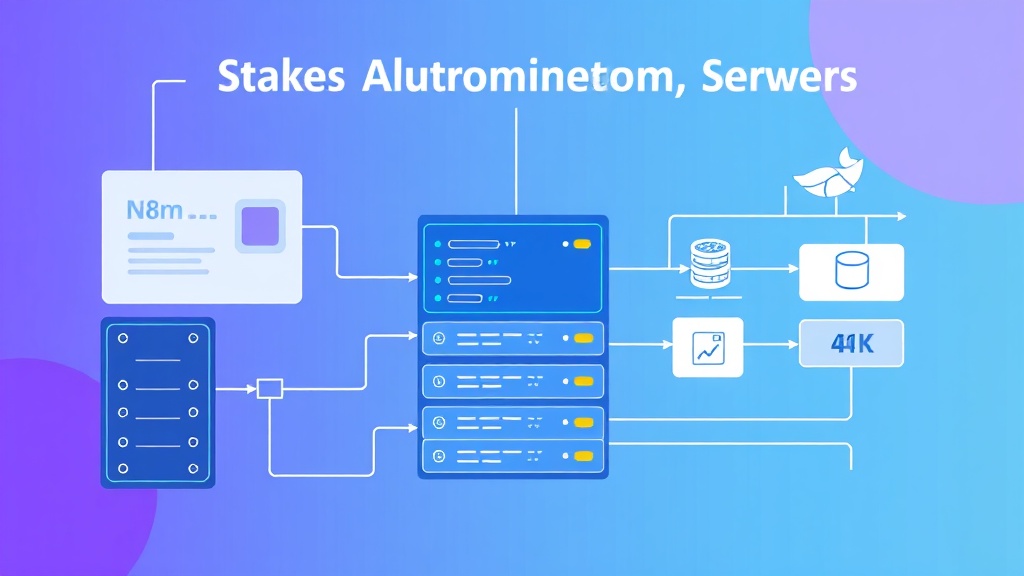
Our self-hosted n8n setup will include several critical components that ensure reliability, scalability, and security:
- Core n8n Application: The main automation engine running in Docker containers
- PostgreSQL Database: Persistent storage for workflows, executions, and credentials
- Redis Cache: Queue management for high-volume workflow executions
- Nginx Reverse Proxy: SSL termination and load balancing
- Let’s Encrypt SSL: Automated certificate management
- Monitoring Stack: Health checks and performance metrics
This architecture can handle 10,000+ workflow executions per day while maintaining sub-second response times for webhook triggers. The total monthly cost for a medium-sized deployment typically ranges from $50-150, compared to $500-2000+ for equivalent cloud automation platforms.
Pro Tip: Self-hosting n8n eliminates execution limits entirely. While Zapier charges $0.30 per task beyond their limits, your self-hosted instance can process unlimited workflows for just the server costs.
Prerequisites and Technology Stack
Before diving into implementation, ensure you have the following infrastructure and tools ready:
Server Requirements
| Component | Minimum | Recommended | High-Volume |
|---|---|---|---|
| CPU | 2 vCPU | 4 vCPU | 8+ vCPU |
| RAM | 4GB | 8GB | 16GB+ |
| Storage | 40GB SSD | 100GB SSD | 250GB+ SSD |
| Network | 100 Mbps | 1 Gbps | 1 Gbps+ |
Software Dependencies
- Ubuntu 22.04 LTS (or compatible Linux distribution)
- Docker Engine 24.0+ and Docker Compose v2
- Domain name with DNS control (for SSL certificates)
- Firewall access to ports 80, 443, and 22
Development Tools
- SSH client for server access
- Text editor (nano, vim, or VS Code with SSH extension)
- Git for version control of configurations
Step-by-Step Implementation
Step 1: Server Preparation and Docker Installation
Start by updating your server and installing Docker with the official repository method:
# Update system packages
sudo apt update && sudo apt upgrade -y

# Install required packages
sudo apt install -y apt-transport-https ca-certificates curl software-properties-common

# Add Docker's official GPG key
curl -fsSL https://download.docker.com/linux/ubuntu/gpg | sudo gpg --dearmor -o /usr/share/keyrings/docker-archive-keyring.gpg

# Add Docker repository
echo "deb [arch=$(dpkg --print-architecture) signed-by=/usr/share/keyrings/docker-archive-keyring.gpg] https://download.docker.com/linux/ubuntu $(lsb_release -cs) stable" | sudo tee /etc/apt/sources.list.d/docker.list > /dev/null

# Install Docker Engine
sudo apt update
sudo apt install -y docker-ce docker-ce-cli containerd.io docker-compose-plugin

# Add current user to docker group
sudo usermod -aG docker $USER
newgrp docker
Verify Docker installation:
docker --version
docker compose version
Step 2: Create Project Structure
Organize your n8n deployment with a clean directory structure:
mkdir -p ~/n8n-automation/{data,postgres,redis,nginx,ssl}
cd ~/n8n-automation

# Create necessary subdirectories
mkdir -p data/{workflows,credentials,nodes}
mkdir -p postgres/data
mkdir -p redis/data
mkdir -p nginx/{conf,logs}
mkdir -p ssl/certs
Step 3: Configure Environment Variables
Create a comprehensive .env file with all necessary configuration:
# Domain and SSL Configuration
DOMAIN=your-automation.yourdomain.com
EMAIL=admin@yourdomain.com

# Database Configuration
POSTGRES_DB=n8n_db
POSTGRES_USER=n8n_user
POSTGRES_PASSWORD=your_secure_password_here
POSTGRES_NON_ROOT_USER=n8n_user
POSTGRES_NON_ROOT_PASSWORD=your_secure_password_here

# n8n Configuration
N8N_BASIC_AUTH_ACTIVE=true
N8N_BASIC_AUTH_USER=admin
N8N_BASIC_AUTH_PASSWORD=your_admin_password_here
N8N_HOST=${DOMAIN}
N8N_PORT=5678
N8N_PROTOCOL=https
WEBHOOK_URL=https://${DOMAIN}/

# Redis Configuration
REDIS_PASSWORD=your_redis_password_here

# Security
N8N_ENCRYPTION_KEY=your_32_character_encryption_key_here
N8N_USER_MANAGEMENT_JWT_SECRET=your_jwt_secret_here

# Performance
N8N_PAYLOAD_SIZE_MAX=16
EXECUTIONS_DATA_PRUNE=true
EXECUTIONS_DATA_MAX_AGE=336
Security Note: Generate strong passwords and keys using
openssl rand -base64 32. Never use the example values in production.
Step 4: Create Docker Compose Configuration
Build a production-ready docker-compose.yml file:
version: '3.8'

services:
  postgres:
    image: postgres:15-alpine
    container_name: n8n_postgres
    restart: unless-stopped
    environment:
      POSTGRES_DB: ${POSTGRES_DB}
      POSTGRES_USER: ${POSTGRES_USER}
      POSTGRES_PASSWORD: ${POSTGRES_PASSWORD}
      POSTGRES_NON_ROOT_USER: ${POSTGRES_NON_ROOT_USER}
      POSTGRES_NON_ROOT_PASSWORD: ${POSTGRES_NON_ROOT_PASSWORD}
    volumes:
      - ./postgres/data:/var/lib/postgresql/data
      - ./postgres/init.sql:/docker-entrypoint-initdb.d/init.sql
    networks:
      - n8n_network
    healthcheck:
      test: ["CMD-SHELL", "pg_isready -U ${POSTGRES_USER} -d ${POSTGRES_DB}"]
      interval: 30s
      timeout: 10s
      retries: 3

  redis:
    image: redis:7-alpine
    container_name: n8n_redis
    restart: unless-stopped
    command: redis-server --requirepass ${REDIS_PASSWORD}
    volumes:
      - ./redis/data:/data
    networks:
      - n8n_network
    healthcheck:
      test: ["CMD", "redis-cli", "--raw", "incr", "ping"]
      interval: 30s
      timeout: 10s
      retries: 3

  n8n:
    image: n8nio/n8n:latest
    container_name: n8n_main
    restart: unless-stopped
    environment:
      - DB_TYPE=postgresdb
      - DB_POSTGRESDB_HOST=postgres
      - DB_POSTGRESDB_PORT=5432
      - DB_POSTGRESDB_DATABASE=${POSTGRES_DB}
      - DB_POSTGRESDB_USER=${POSTGRES_NON_ROOT_USER}
      - DB_POSTGRESDB_PASSWORD=${POSTGRES_NON_ROOT_PASSWORD}
      - QUEUE_BULL_REDIS_HOST=redis
      - QUEUE_BULL_REDIS_PASSWORD=${REDIS_PASSWORD}
      - N8N_BASIC_AUTH_ACTIVE=${N8N_BASIC_AUTH_ACTIVE}
      - N8N_BASIC_AUTH_USER=${N8N_BASIC_AUTH_USER}
      - N8N_BASIC_AUTH_PASSWORD=${N8N_BASIC_AUTH_PASSWORD}
      - N8N_HOST=${N8N_HOST}
      - N8N_PORT=${N8N_PORT}
      - N8N_PROTOCOL=${N8N_PROTOCOL}
      - WEBHOOK_URL=${WEBHOOK_URL}
      - N8N_ENCRYPTION_KEY=${N8N_ENCRYPTION_KEY}
      - N8N_USER_MANAGEMENT_JWT_SECRET=${N8N_USER_MANAGEMENT_JWT_SECRET}
      - N8N_PAYLOAD_SIZE_MAX=${N8N_PAYLOAD_SIZE_MAX}
      - EXECUTIONS_DATA_PRUNE=${EXECUTIONS_DATA_PRUNE}
      - EXECUTIONS_DATA_MAX_AGE=${EXECUTIONS_DATA_MAX_AGE}
    ports:
      - "127.0.0.1:5678:5678"
    volumes:
      - ./data:/home/node/.n8n
    depends_on:
      postgres:
        condition: service_healthy
      redis:
        condition: service_healthy
    networks:
      - n8n_network
    healthcheck:
      test: ["CMD-SHELL", "wget --no-verbose --tries=1 --spider http://localhost:5678/healthz || exit 1"]
      interval: 30s
      timeout: 10s
      retries: 3

  nginx:
    image: nginx:alpine
    container_name: n8n_nginx
    restart: unless-stopped
    ports:
      - "80:80"
      - "443:443"
    volumes:
      - ./nginx/conf/nginx.conf:/etc/nginx/nginx.conf:ro
      - ./nginx/conf/default.conf:/etc/nginx/conf.d/default.conf:ro
      - ./ssl/certs:/etc/nginx/ssl:ro
      - ./nginx/logs:/var/log/nginx
    depends_on:
      - n8n
    networks:
      - n8n_network

  certbot:
    image: certbot/certbot
    container_name: n8n_certbot
    volumes:
      - ./ssl/certs:/etc/letsencrypt
      - ./ssl/www:/var/www/certbot
    command: certonly --webroot --webroot-path=/var/www/certbot --email ${EMAIL} --agree-tos --no-eff-email -d ${DOMAIN}

networks:
  n8n_network:
    driver: bridge

volumes:
  postgres_data:
  redis_data:
  n8n_data:
Step 5: Configure Nginx Reverse Proxy
Create the Nginx configuration for SSL termination and proxying:
# nginx/conf/nginx.conf
user nginx;
worker_processes auto;
error_log /var/log/nginx/error.log warn;
pid /var/run/nginx.pid;

events {
    worker_connections 1024;
    use epoll;
    multi_accept on;
}

http {
    include /etc/nginx/mime.types;
    default_type application/octet-stream;

    log_format main '$remote_addr - $remote_user [$time_local] "$request" '
                    '$status $body_bytes_sent "$http_referer" '
                    '"$http_user_agent" "$http_x_forwarded_for"';

    access_log /var/log/nginx/access.log main;

    sendfile on;
    tcp_nopush on;
    tcp_nodelay on;
    keepalive_timeout 65;
    types_hash_max_size 2048;

    client_max_body_size 50M;

    gzip on;
    gzip_vary on;
    gzip_min_length 1024;
    gzip_types text/plain text/css text/xml text/javascript application/javascript application/xml+rss application/json;

    include /etc/nginx/conf.d/*.conf;
}
Create the site-specific configuration:
# nginx/conf/default.conf
server {
    listen 80;
    server_name your-automation.yourdomain.com;

    location /.well-known/acme-challenge/ {
        root /var/www/certbot;
    }

    location / {
        return 301 https://$server_name$request_uri;
    }
}

server {
    listen 443 ssl http2;
    server_name your-automation.yourdomain.com;

    ssl_certificate /etc/nginx/ssl/live/your-automation.yourdomain.com/fullchain.pem;
    ssl_certificate_key /etc/nginx/ssl/live/your-automation.yourdomain.com/privkey.pem;

    ssl_session_cache shared:SSL:10m;
    ssl_session_timeout 10m;
    ssl_protocols TLSv1.2 TLSv1.3;
    ssl_ciphers ECDHE-RSA-AES128-GCM-SHA256:ECDHE-RSA-AES256-GCM-SHA384:ECDHE-RSA-AES128-SHA256:ECDHE-RSA-AES256-SHA384;
    ssl_prefer_server_ciphers on;

    add_header Strict-Transport-Security "max-age=31536000; includeSubDomains" always;
    add_header X-Frame-Options DENY;
    add_header X-Content-Type-Options nosniff;

    client_max_body_size 50M;

    location / {
        proxy_pass http://n8n:5678;
        proxy_http_version 1.1;
        proxy_set_header Upgrade $http_upgrade;
        proxy_set_header Connection 'upgrade';
        proxy_set_header Host $host;
        proxy_set_header X-Real-IP $remote_addr;
        proxy_set_header X-Forwarded-For $proxy_add_x_forwarded_for;
        proxy_set_header X-Forwarded-Proto $scheme;
        proxy_cache_bypass $http_upgrade;
        proxy_connect_timeout 60s;
        proxy_send_timeout 60s;
        proxy_read_timeout 60s;
    }
}
Step 6: Database Initialization
Create a PostgreSQL initialization script:
# postgres/init.sql
CREATE USER n8n_user WITH PASSWORD 'your_secure_password_here';
CREATE DATABASE n8n_db OWNER n8n_user;
GRANT ALL PRIVILEGES ON DATABASE n8n_db TO n8n_user;
Testing and Validation
Initial Deployment and SSL Setup
Deploy the stack in stages to ensure each component works correctly:
# Start database and cache services first
docker compose up -d postgres redis

# Wait for services to be healthy
docker compose ps

# Check service logs
docker compose logs postgres
docker compose logs redis
Once the database is running, start the main application:
# Start n8n application
docker compose up -d n8n

# Monitor startup process
docker compose logs -f n8n
SSL Certificate Generation
Generate Let’s Encrypt certificates before starting Nginx:
# Create initial certificate
docker compose run --rm certbot

# Start Nginx with SSL
docker compose up -d nginx
Health Check Validation
Verify all services are running correctly:
# Check all container status
docker compose ps

# Test internal connectivity
docker compose exec n8n wget -qO- http://localhost:5678/healthz

# Test external access
curl -I https://your-automation.yourdomain.com
Performance Testing
Create a simple test workflow to validate automation capabilities:
- Access your n8n instance at
https://your-automation.yourdomain.com - Create a webhook-triggered workflow
- Test with curl commands to measure response times
- Monitor resource usage with
docker stats
Performance Benchmark: A properly configured n8n instance should handle webhook requests in under 100ms and process simple workflows in under 500ms.
Production Deployment and Hardening
Automated SSL Renewal
Set up automatic certificate renewal with a cron job:
# Add to crontab with: crontab -e
0 3 * * 1 cd /home/ubuntu/n8n-automation && docker compose run --rm certbot renew && docker compose restart nginx
Backup Strategy
Implement automated backups for critical data:
#!/bin/bash
# backup.sh
BACKUP_DIR="/home/ubuntu/backups/$(date +%Y%m%d)"
mkdir -p $BACKUP_DIR

# Backup PostgreSQL database
docker compose exec -T postgres pg_dump -U n8n_user n8n_db > $BACKUP_DIR/n8n_db.sql

# Backup n8n data directory
tar -czf $BACKUP_DIR/n8n_data.tar.gz ./data

# Backup configuration files
tar -czf $BACKUP_DIR/config.tar.gz .env docker-compose.yml nginx/

# Clean old backups (keep 30 days)
find /home/ubuntu/backups -type d -mtime +30 -exec rm -rf {} +
Monitoring and Alerting
Add monitoring capabilities with a simple health check script:
#!/bin/bash
# health-check.sh
HEALTH_URL="https://your-automation.yourdomain.com/healthz"

if ! curl -f -s $HEALTH_URL > /dev/null; then
    echo "n8n health check failed" | mail -s "n8n Alert" admin@yourdomain.com
fi
Security Hardening
Implement additional security measures:
- Firewall Configuration: Use UFW to restrict access to necessary ports only
- Fail2ban: Protect against brute force attacks
- Regular Updates: Keep Docker images and system packages updated
- Network Isolation: Use Docker networks to isolate services
# Configure UFW firewall
sudo ufw allow 22/tcp
sudo ufw allow 80/tcp
sudo ufw allow 443/tcp
sudo ufw enable
Enhancement Ideas and Advanced Configurations
High Availability Setup
For mission-critical deployments, consider implementing:
- Load Balancing: Multiple n8n instances behind a load balancer
- Database Clustering: PostgreSQL primary-replica setup
- Redis Clustering: Redis Sentinel for queue high availability
- Geographic Distribution: Multi-region deployments
Integration Enhancements
Expand your automation capabilities by integrating with other tools in your stack:
| Integration | Use Case | Configuration |
|---|---|---|
| PostHog | Analytics tracking | Webhook workflows for event capture |
| Cal.com | Appointment automation | Booking confirmations and reminders |
| Lemlist | Email sequences | Lead nurturing workflows |
Custom Node Development
Extend n8n functionality with custom nodes for proprietary systems:
# Create custom node structure
mkdir -p ./data/nodes/custom-api-node
cd ./data/nodes/custom-api-node

# Initialize npm package
npm init -y
npm install n8n-workflow n8n-core
Workflow Templates and Libraries
Build a library of reusable workflow templates:
- CRM Integration: Lead capture and nurturing sequences
- E-commerce Automation: Order processing and customer communication
- DevOps Workflows: Deployment notifications and monitoring
- Content Management: Social media posting and SEO optimization
Frequently Asked Questions
How does self-hosted n8n compare to cloud automation platforms in terms of cost?
Self-hosted n8n typically costs $50-150 monthly for server infrastructure, while processing unlimited workflows. In contrast, cloud platforms like Zapier charge $0.30 per task beyond their limits, with enterprise plans reaching $2,000+ monthly. For businesses processing 10,000+ automations monthly, self-hosting provides 80-90% cost savings while offering unlimited scaling potential.
What are the main security considerations for a self-hosted n8n instance?
Key security measures include: implementing SSL/TLS encryption, using strong authentication credentials, regularly updating Docker images and system packages, configuring firewall rules to restrict access, implementing backup strategies, and monitoring for unauthorized access attempts. Additionally, consider network isolation, credential encryption, and regular security audits for production deployments.
How can I scale my n8n deployment to handle high-volume workflows?
Scale n8n by implementing horizontal scaling with multiple worker instances, upgrading to higher-performance servers (8+ vCPU, 16GB+ RAM), optimizing database performance with connection pooling, implementing Redis clustering for queue management, and using load balancers for traffic distribution. Monitor execution times and resource usage to identify bottlenecks and optimize workflow efficiency.
What backup and disaster recovery strategies should I implement?
Implement automated daily backups of PostgreSQL databases, n8n data directories, and configuration files. Store backups in multiple locations (local and cloud storage), test restore procedures regularly, and maintain documentation of the recovery process. Consider implementing database replication for critical deployments and ensure backup retention policies align with your business requirements.
Ready to take your automation infrastructure to the next level? Our team at futia.io’s automation services can help you design, implement, and optimize enterprise-grade automation solutions tailored to your specific business needs. From custom workflow development to high-availability deployments, we ensure your automation infrastructure scales with your business growth.
🛠️ Tools Mentioned in This Article